Mega Block Game on Mobile: Android APK, iOS & PWA Guide
Access Mega Block through your casino's Android APK, iOS PWA, or directly in any mobile browser — with no quality compromise.
What You Are Actually Downloading
Mega Block is a server-based HTML5 game developed by Inout Games (Curacao-licensed, established 2024). It is not a standalone application that you download from any app store. Instead, the game runs on casino servers and is delivered to your device through a browser or a casino app — in the same way that online video streaming works rather than local file playback.
When people search for a "Mega Block APK" or "Mega Block download", what they are really looking for is one of two things: the casino's own Android app (which contains Mega Block in its game library), or simply a way to play this tower-building crash game on their phone without sitting at a desktop. Both options are straightforward, and this guide covers all of them honestly.
Mega Block supports portrait and landscape orientations, runs in any modern mobile browser, and loads in under ten seconds on a typical 4G connection. The RTP is fixed at 95.5% regardless of your device or connection type. Before you wager real money, we recommend you learn the rules before playing and consider trying the free demo first.
Option 1: Android APK
Several casinos that carry Inout's block-stacking title distribute their own Android applications as APK files directly from their websites. These include 1Win, PIN-UP, LuckyStar, and Drip. The process takes roughly five to ten minutes and requires a few security settings to be adjusted on your device.
Step-by-Step Installation
-
1
Visit the official casino website on your Android device.
Open Chrome or your preferred browser and navigate to the official website of a casino that offers Mega Block. Confirm the URL is correct and the connection is secured with HTTPS before proceeding.
-
2
Find the APK download link.
Most casinos place an "Android" or "Download App" button in their site header, footer, or a dedicated promotions banner. Tap it. You will be directed to a page with a direct download link for the APK file.
-
3
Enable installation from unknown sources.
Android restricts APK installation from outside the Play Store by default. Go to Settings > Apps > Special App Access > Install Unknown Apps, then select your browser (e.g. Chrome) and toggle on "Allow from this source". On older Android versions this setting is under Settings > Security > Unknown Sources.
-
4
Download and install the APK file.
Return to the casino page and tap the download button. The APK file will save to your Downloads folder. Open the notification bar, tap the completed download, and tap Install when prompted. The installation completes in under a minute.
-
5
Log in and search for Mega Block.
Open the casino app from your home screen. Log in to your existing account or complete a quick registration. Use the search function to find "Mega Block", or browse the Crash Games, Skill Games, or Originals category depending on the casino's navigation structure.
Security Considerations
Installing apps outside the Play Store is a legitimate process used by millions of casino players worldwide, but it carries a higher risk of encountering malicious software if you are not careful. Follow these precautions:
- Only download from the casino's official domain — verify the URL before tapping any link.
- Check that the casino holds a current Curacao Gaming Licence or equivalent regulatory approval.
- After installation, consider re-disabling the "Install Unknown Apps" permission for your browser.
- Run a scan with a reputable mobile antivirus app (such as Bitdefender or Malwarebytes) if you have any doubt about a file you have downloaded.
- Never install an APK shared via WhatsApp, Telegram, or social media — these are common vectors for fraudulent software.
Option 2: iOS — Add to Home Screen (PWA)
Apple restricts real-money casino apps from the App Store in most countries, including the European Union. This means you will not find dedicated casino apps for services like 1Win or PIN-UP on the App Store. Instead, iOS users play through Safari — and for a more app-like experience, they can save the casino as a Progressive Web App (PWA) on their home screen.
Adding the Casino to Your iPhone Home Screen
-
1
Open Safari on your iPhone or iPad.
PWA installation requires Safari specifically. Chrome and Firefox on iOS do not fully support the Add to Home Screen functionality in the same way.
-
2
Navigate to the casino website.
Type the casino's URL directly into Safari's address bar. Log in to your account first — this makes the experience smoother when you return via the home screen icon.
-
3
Tap the Share button.
Look for the square icon with an upward-pointing arrow, located at the bottom of the Safari screen. Tap it to open the share sheet.
-
4
Tap "Add to Home Screen".
Scroll through the share sheet options until you find "Add to Home Screen". Tap it, give the shortcut a name (e.g. "1Win" or "Mega Block Casino"), and tap Add in the top-right corner.
-
5
Launch from your home screen.
The casino icon now appears on your iPhone home screen. Tapping it opens the website in a full-screen view without Safari's browser chrome, creating an experience close to a native app.
PWA Benefits for Mega Block Players
- Instant access from your home screen without opening a browser first.
- Full-screen display removes browser navigation bars, giving you more screen space for the game.
- No App Store review process — casinos can update their games instantly.
- No storage difference from a native app — the game loads from the server each session.
- Works on iOS 14.0 and above, including iPhone SE (2nd generation) and all later models.
Option 3: Play Directly in Your Mobile Browser
By far the simplest way to play Mega Block on your phone is also the most straightforward — open any modern mobile browser, go to the casino website, log in, and start playing. No installation required.
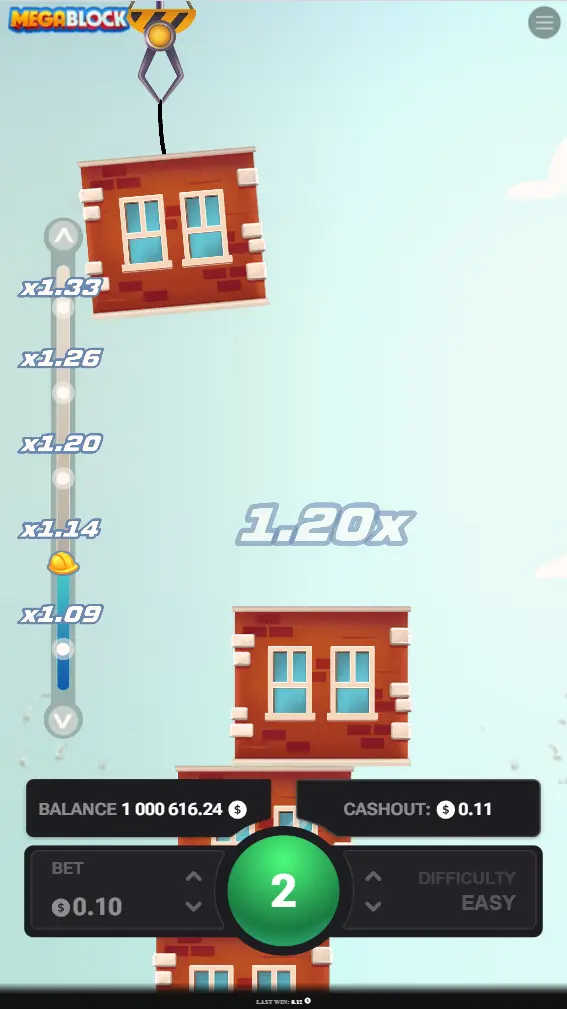
Built entirely in HTML5, Mega Block is fully optimised for touch screens. Its interface adapts to portrait and landscape orientations automatically. Tap and swipe gestures work in place of mouse clicks, and the bet controls are sized appropriately for touchscreen use. Performance on a modern mid-range smartphone is indistinguishable from a desktop computer, because the game logic runs on the server regardless.
This method is particularly useful when you are on a borrowed or shared device, when you do not want to install anything, or when you want to try the demo quickly between other activities. Supported browsers include Chrome for Android, Safari for iOS, Firefox for Android, and Samsung Internet.
System Requirements
Because Mega Block is server-based, your device's hardware has minimal impact on gameplay. The requirements below are for the casino apps and browsers that host the game, not for the tower-building crash game itself.
| Requirement | Android | iOS |
|---|---|---|
| Operating System | Android 10.0 or newer | iOS 14.0 or newer |
| RAM | 2 GB minimum | 2 GB minimum |
| Free Storage | ~100 MB (casino app) | ~50 MB (PWA / browser) |
| Internet Speed | 2 Mbps or faster | 2 Mbps or faster |
| Browser | Chrome 90+, Firefox 88+, Samsung Internet 14+ | Safari 14+ |
| Screen Resolution | 720p (HD) or above | 720p (HD) or above |
Mobile vs Desktop: How Do They Compare?
Most Mega Block players find themselves switching between mobile and desktop depending on the situation. If you are also curious how Mega Block compares to other tower crash games on mobile, see our Mega Block vs Tower Rush comparison. Here is a realistic assessment of each platform.
| Factor | Mobile | Desktop |
|---|---|---|
| Graphics Quality | Excellent — identical game assets | Excellent — slightly larger display |
| Convenience | High — play anywhere | Moderate — requires sitting at a computer |
| Battery Drain | Moderate — ~15% per hour typical | Not applicable |
| Touch Controls | Native — tap to place blocks | Mouse only — no touch |
| Screen Size | Smaller — portrait mode recommended | Larger — more context visible |
| Game Outcomes (RTP) | 95.5% — server-determined | 95.5% — identical |
| Multitasking | Easy — switch between apps | Easy — multiple windows |
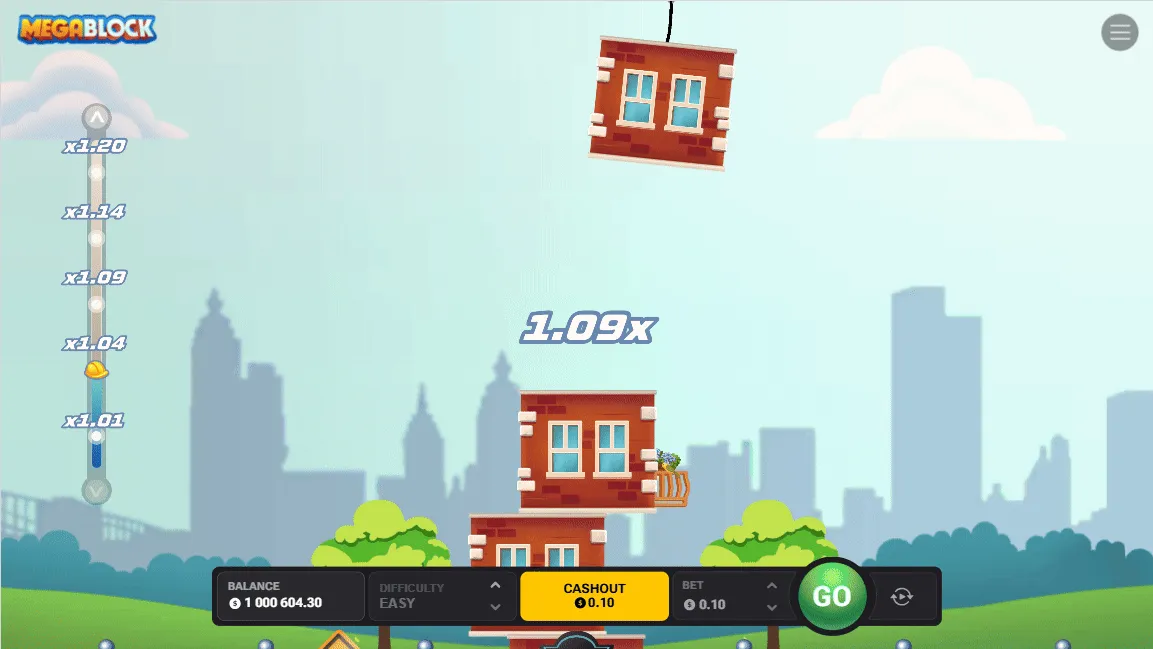
Mobile Gaming Tips for Mega Block
Getting the best experience from Mega Block on mobile requires a few small adjustments compared to desktop play.
Use Portrait Mode for Focused Play
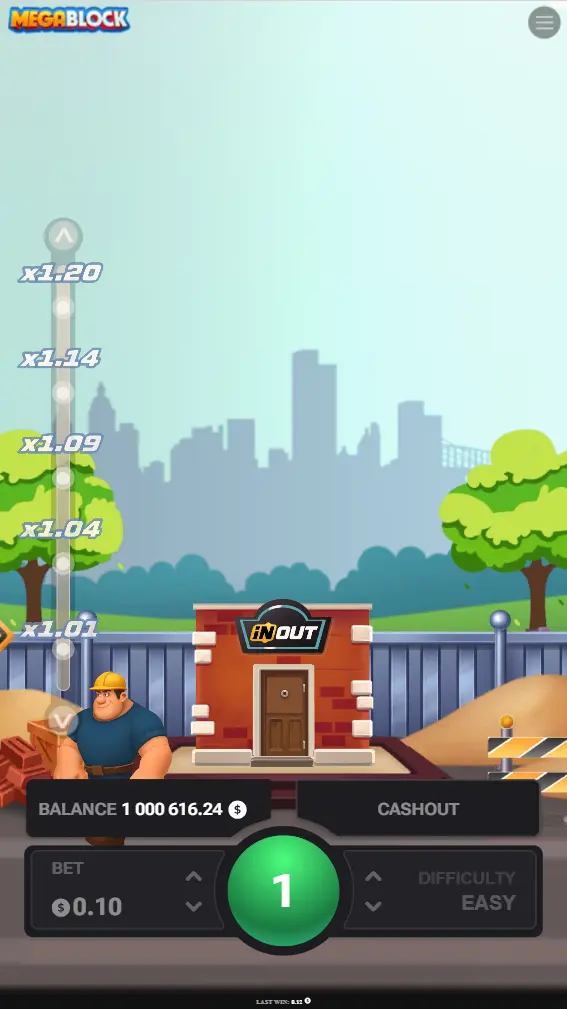
Mega Block's vertical block-stacking mechanics suit portrait orientation naturally. The game grid takes up the majority of the screen and the bet controls remain accessible at the bottom without zooming. Switch to landscape for a wider view of the side statistics panel if your casino's layout supports it.
Connect to Wi-Fi for Extended Sessions
Mobile data is reliable for short sessions, but the game's real-time animations consume a moderate amount of data — roughly 20–40 MB per hour of play. On Wi-Fi you eliminate any latency variation that can make the animation appear to stutter, and you avoid using your data allowance.
Adjust Screen Brightness
Mega Block uses a dark background with bright, coloured blocks. Reducing screen brightness slightly in low-light environments reduces eye strain during longer sessions and also extends battery life meaningfully.
Enable Do Not Disturb
Incoming calls and notifications interrupt the game's timing and can break your concentration during a round. Enable Do Not Disturb mode while playing, particularly if you use an auto-cashout or timing-based strategy.
Set a Session Limit Before You Start
Mobile play is particularly easy to continue beyond your planned session because the device is always with you. Use the casino's built-in deposit or session time limits, or simply set a phone timer. Review our Mega Block strategies guide to develop a disciplined approach that works well on mobile. See our welcome bonus guide for details on cashback offers that can extend your bankroll responsibly.
Keep Your Browser Up to Date
Outdated browsers may display WebGL or CSS animation artefacts that make the game look glitchy. Chrome and Safari update automatically on most devices, but check your Play Store or App Store for pending updates if the game looks visually inconsistent.
Troubleshooting Common Mobile Issues
Game Loads But Lags or Stutters
This is nearly always a network issue rather than a device performance issue. Check your Wi-Fi or mobile data signal strength. If you are on mobile data and experiencing 3G-level speeds, the animation can appear choppy. Try closing other apps running in the background, which may be consuming bandwidth. If the problem persists on a good connection, try clearing your browser cache: Chrome > three-dot menu > Settings > Privacy and Security > Clear Browsing Data.
Casino App Crashes on Launch
APK crashes on launch are usually caused by a storage issue (less than 500 MB free space), an incompatible Android version (below 10.0), or a corrupted download. First, verify you meet the system requirements listed above. Then uninstall the app, clear your browser cache, and re-download the APK directly from the casino's official website. Avoid downloading over an unstable mobile connection.
Login Problems After App Install
If you cannot log in to the casino app after installation, confirm you are using the same credentials as your browser-based account. Some casinos require email verification before you can log in via their app for the first time. Check your email's spam folder. If you have two-factor authentication enabled, ensure your phone's clock is correctly synced (Settings > General > Date & Time > Set Automatically).
Mega Block Not Appearing in the Casino App
Not all game categories are shown by default in casino apps. Use the search bar and type "Mega Block" or "Inout Games" directly. Some casinos list the game under "Originals", "Crash", or "Skill Games" rather than a general slots section. If the game still does not appear, the casino may have temporarily removed it for maintenance — check the casino's social media for announcements.
iOS PWA Loses Login Session
Safari clears PWA storage after seven days of inactivity as part of Apple's Intelligent Tracking Prevention policy. This means you may need to log in again after a period of not using the PWA. The workaround is to visit the casino at least once a week, or to allow the casino to send push notifications (which keeps the PWA active in iOS's memory).
Game Screen Is Cut Off on Certain Phones
Phones with non-standard aspect ratios (such as some Samsung Galaxy Ultra models) may display the game in a slightly letterboxed format. This does not affect gameplay. If the bet buttons are partially hidden, try rotating to landscape mode or adjusting your browser's zoom level to 90% in the browser settings.
Update History
This guide is maintained independently. Below is a record of significant updates to this page's content.
Added iOS PWA session persistence note regarding Apple's 7-day storage policy. Updated casino app list to include Drip. Added troubleshooting entry for non-standard aspect ratio devices. Verified all external casino links remain active.
Initial publication. Covers Android APK installation, iOS PWA guide, mobile browser play, system requirements, mobile vs desktop comparison table, gaming tips, and troubleshooting. Six FAQ questions with answers.
Frequently Asked Questions
Is there a standalone Mega Block APK I can download directly?
No. Mega Block is a server-based HTML5 game produced by Inout Games and distributed exclusively through licensed casino platforms. There is no standalone Mega Block APK available for direct download. Any APK you download is the casino's own app, which includes Mega Block in its game library. Be wary of any third-party site claiming to offer a dedicated Mega Block download file — these are not official and may pose a security risk.
Why isn't Mega Block available on the Google Play Store or Apple App Store?
Real-money casino games face strict restrictions on official app stores in many regions. Google allows real-money gambling apps in a limited number of approved countries, and Apple similarly restricts them on the App Store. Most casino operators that hold Curacao licences distribute their Android apps directly via APK from their own websites rather than navigating app store approval processes. iOS users access Mega Block through Safari or as a Progressive Web App saved to their home screen.
Is it safe to install a casino APK on my Android phone?
Installing APKs from outside the Play Store carries more risk than downloading from official app stores, but it is a safe process when handled correctly. Download only from the casino's official website (confirm the URL and HTTPS certificate), verify that the casino holds a valid Curacao Gaming Licence or equivalent, and consider running a mobile antivirus scan after installation. After installing, re-disable the "Install Unknown Apps" permission in your Android settings to protect against future accidental installs.
What Android version do I need to play Mega Block?
Mega Block requires Android 10.0 or newer, a minimum of 2 GB of RAM, and approximately 100 MB of free storage for the casino app installation. A stable internet connection of at least 2 Mbps is recommended for smooth animation. The game itself is very lightweight as it runs on the server, so even a mid-range device from 2021 or newer handles it without issue.
How do I add a casino PWA to my iPhone home screen?
Open Safari on your iPhone and navigate to the casino website. Tap the Share button — the square icon with an upward arrow at the bottom of the Safari screen. Scroll the share sheet and tap "Add to Home Screen". Give it a name and tap Add. The casino icon will appear on your home screen and open in full-screen mode like a native app. This works on iOS 14.0 and above. Note that Safari clears PWA data after seven days of inactivity, so you may need to log in again after a period of not using it.
Does playing Mega Block on mobile affect the RTP or results?
No. Mega Block is a server-side game — the game logic, RTP of 95.5%, and all random outcomes are calculated on the casino's servers rather than your device. Whether you play on a desktop browser, a mobile browser, or a casino app, you receive identical odds and the same house edge of 4.5%. Your device type, connection speed, and screen size have no bearing on outcomes.
Can I use bonuses when playing Mega Block on the mobile app?
Yes. Casino bonuses are tied to your account, not your device. Welcome bonuses, cashback offers, and free bet promotions apply whether you play on a desktop, mobile browser, or casino app. The important thing to check is whether Mega Block contributes towards wagering requirements — some casinos exclude crash-style games from bonus wagering. Visit our bonuses page for verified, up-to-date offers that are confirmed to work with Mega Block.
Ready to Play Mega Block on Your Phone?
Whether you prefer an Android APK, an iOS PWA, or simply opening a browser tab, Mega Block is accessible on all devices in under two minutes. If you are new to the game, we recommend you try the free demo first to get comfortable with the block-stacking mechanics before placing real wagers. When you are ready to play for real money, check the welcome bonus offers to make your first deposit go further.
18+ only. Real-money gambling involves risk. Play responsibly.